Design advice
How do you design a branded spin wheel people can read?
Plan twelve clear spin wheel sections, choose readable colours and add centre branding. Build your custom wheel artwork in Whizprint Studio.
Give each section one clear message
A spin wheel is easier to understand when visitors can read a section without stopping to work through a sentence. Start by writing the complete set of labels before choosing colours or images. Use short, distinct wording and decide what each label means to the person running the activity. If a label needs a long explanation, put that explanation on a separate sign or in the staff briefing. Keep the wheel itself focused on the choices people need to recognise.
Plan around the twelve-section layout
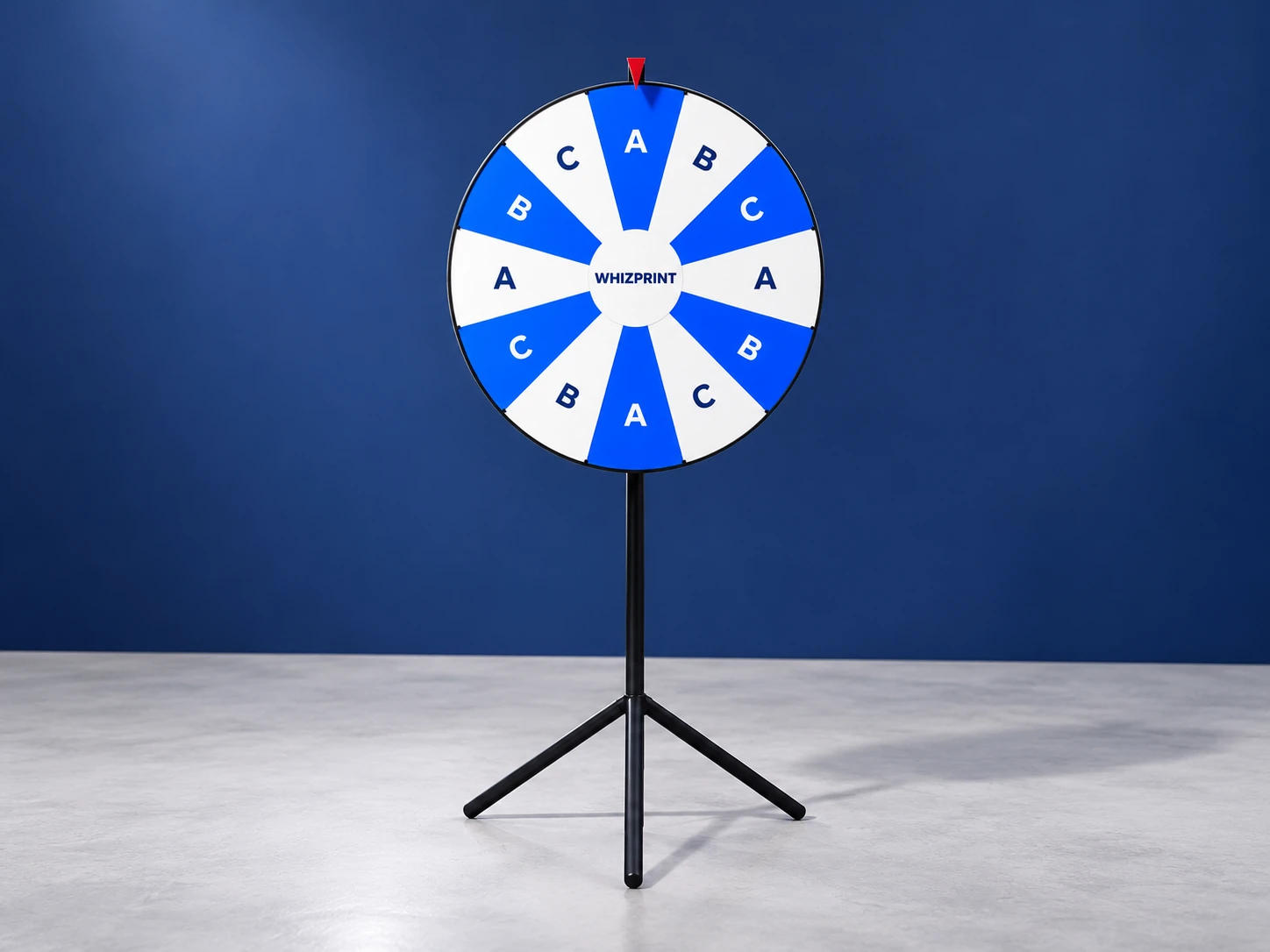
The current Whizprint wheel has a 30 in / 76.2 cm diameter face with twelve sections. Studio lets you personalise each section rather than changing the section count. List the twelve positions in order and check that none still contains unwanted example wording. If the same label appears more than once, make that an intentional choice. Do not treat the Studio spin animation as evidence of real-world outcome frequencies; use the preview to judge the artwork and overall appearance.
Use colour to separate the labels
Choose a small palette that works with your branding. Alternating a strong brand colour with a light colour can help people distinguish adjacent sections. Check the text colour separately on each background: a colour that looks clear on white may disappear on a dark blue segment. Do not rely on colour alone to identify a choice. Keep the wording readable so two sections remain distinguishable even when their colours look similar to a visitor.
Keep pictures simple and leave room for the words
Studio supports a section image as well as section text. Use a recognisable image with a simple outline rather than a detailed photograph containing several objects. An image also takes up room that could otherwise hold the label, so inspect the combined result before repeating it around the wheel. If the image does not explain the choice more quickly, leave it out. Check that every uploaded file has loaded and that the important part of the image remains visible within its section.
Make the centre identify your business
Use the centre for a short business name or a clear logo. In Whizprint Studio, uploading a centre image replaces the centre text, so include any essential wording in the image itself if you need both. Avoid a logo version with a tiny strapline that becomes unreadable at the centre of the wheel. Try a simpler brand mark and let your stand backdrop or other display carry the longer message. Review the centre alongside all twelve sections, not only in an enlarged artwork view.
Check it from where visitors will stand
Look at the complete wheel at a realistic viewing size and read the labels aloud in sequence. Can you tell similar words apart? Are any labels noticeably longer or denser than the others? Review the wheel in 3D and inspect the artwork preview for missing images, spelling and colour choices. The displayed stand height and footprint are illustrative, so confirm the physical setup requirements before planning the floor space around it. Leave room for someone to approach without blocking the rest of your stand.
Build your wheel in Whizprint Studio
Open the custom spin wheel in Studio and select each section to change its colour, text colour, wording and optional image. Add your centre branding, then review all twelve positions once more. Check the current configured price before ordering. If you need help simplifying your artwork, send Whizprint your logo, the twelve labels and a short description of the activity. That gives us a clear starting point for helping you create a consistent, readable design.