Design advice
How do you fit a logo on a feather flag without cropping it?
Fit your logo within a feather flag’s curved outline, choose clear wording and check the complete artwork before ordering in Whizprint Studio.
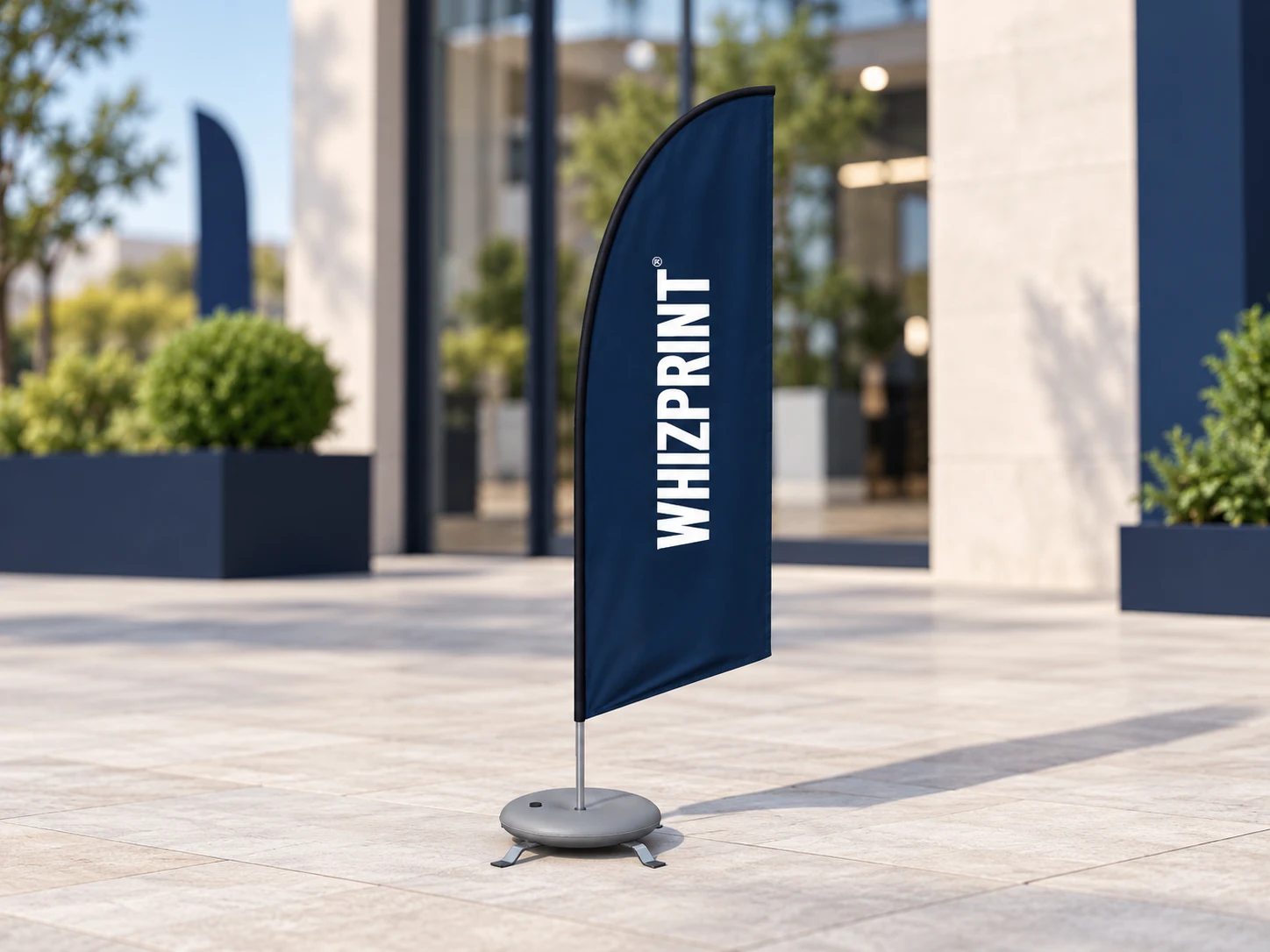
Start with the fabric shape, not a rectangular page
A feather flag narrows towards its curved top. A logo that fits inside a rectangular artwork file can still run into the edge of the finished flag. Start with your chosen flag in Studio and look at its actual outline before placing anything. Treat the widest central area as the starting point for the main brand name. Filling every available centimetre is less useful than keeping the complete logo visible.
Choose the right version of your logo
A long horizontal logo may need to be rotated or made smaller to fit a tall flag. If your brand has an approved stacked version or a simple symbol, try that too. Keep the logo’s original proportions: stretching the lettering to fill the space changes its appearance. Do not recreate or remove parts of a brand mark just to make it fit. Ask the person responsible for your artwork for an alternative logo file if the only version includes a tiny strapline.
Leave room around the curved top and edges
Position the logo away from the fabric outline, then inspect its first and last letters. The top curve and angled lower edge deserve particular attention. Leave a visible margin rather than placing a letter exactly against the boundary. This is layout advice, not a specified production safe area or bleed measurement. Follow the artwork template and any production guidance supplied for the selected flag before approving a print file.
Decide whether the flag needs another message
A flag can identify your business without listing everything you sell. If you add a phrase, give it a clear purpose, such as naming your main service. Compare the version with the phrase against the version without it. A full address, several social handles and a small QR code can make the design harder to read at a glance. Put detailed information where visitors can stop to read it, such as on a counter or a separate display.
Use contrast and check the background
Look at the logo against the actual fabric colour you have chosen. A dark mark on navy may disappear even if it looked fine on the white background of the original file. Use an approved light logo version where needed. Check whether an uploaded image includes an unwanted rectangular background. View the whole flag at a smaller size as well as zooming in: fine outlines and small lettering may be visible in the editor but contribute little to the overall display.
Review the whole flag before repeating the design
Inspect the complete flag in the 3D preview, then check its artwork view. Look for clipped letters, missing images and accidental overlaps. Do not assume that a layout which fits one flag shape or size will fit another unchanged. Recheck the placement when you alter the configuration. Keep essential wording away from edges, and confirm the selected print options rather than assuming that the reverse face will read in the same way as the front.
Try your logo in Whizprint Studio
Open the feather flag in Studio, choose the available size and compatible base, then add your artwork. Position the logo with enough space around it and review the current configured price. The base shown in an illustration is not a specification for your event: check the surface and installation requirements for your location. If your logo is difficult to fit, send Whizprint an artwork enquiry with the original file and the flag you are considering so we can help with the layout.